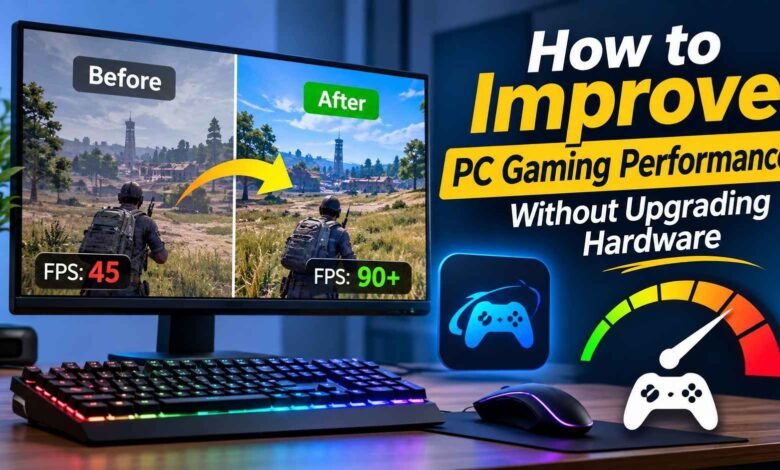
A smooth gaming experience does not always require an expensive graphics card or a completely new computer. Many gamers experience low FPS, sudden frame drops, long loading times, or stuttering even when their PC meets the basic requirements of a game. In some cases, the problem is not outdated hardware but how the system is configured and how its resources are being used.
Before spending money on upgrades, it is worth checking a few things that can affect gaming performance. Background applications, outdated drivers, unnecessary startup programs, high graphics settings, and overheating can all make games run less smoothly.
The good news is that several practical adjustments can help improve the experience without replacing major components. Here are some useful ways to get more consistent performance from an existing gaming PC.
1. Check Whether Your PC Can Handle the Game
One of the most common mistakes gamers make is installing a demanding game without checking whether their computer can run it comfortably. A game might launch successfully but still struggle with low frame rates, inconsistent performance, or graphics settings that are too demanding for the hardware.
Every game has different system requirements. Some rely heavily on the graphics card, while others need more processing power or system memory. Checking these requirements before installation can save time and help avoid unnecessary troubleshooting.
Pay attention to the minimum and recommended specifications. Minimum requirements generally indicate the hardware needed to run a game at basic settings, whereas recommended specifications provide a better starting point for a more comfortable experience.
For a quicker compatibility check, gamers can use the Can I Run It feature available through Smart Game Booster. It helps users compare their computer’s hardware with the requirements of supported games. This makes it easier to understand whether a particular title is suitable for an existing system before downloading it.
It is also useful to remember that meeting the minimum requirements does not guarantee smooth performance. Resolution, graphics quality, background activity, and game updates can all influence the final result.
2. Close Unnecessary Background Applications
Modern games often use considerable amounts of CPU power and RAM. When several other applications are running simultaneously, fewer resources may remain available for the game.
Web browsers with multiple tabs, video editing applications, file transfers, and unnecessary launchers can contribute to additional system load. This is particularly noticeable on computers with limited memory.
Windows Task Manager provides a simple way to identify applications consuming system resources.
To check background activity:
- Press Ctrl + Shift + Esc to open Task Manager.
- Select the Processes tab.
- Review CPU, Memory, and Disk usage.
- Identify applications that are not currently needed.
- Close only programs you recognize and do not need during gameplay.
Avoid ending unfamiliar Windows processes or essential security services. Removing unnecessary background activity is useful, but disabling important system components can create stability and security problems.
Making this a regular habit can help keep the system responsive, especially when playing demanding titles.
3. Keep Graphics and Audio Drivers Updated
Drivers allow Windows and applications to communicate properly with hardware components. Graphics drivers are particularly important for gaming because they influence how the operating system and games interact with the GPU.
An outdated graphics driver may cause compatibility issues, visual glitches, crashes, or inconsistent performance in newer games. Driver updates can also include optimizations and fixes for recently released titles.
For the best results, download graphics drivers through the official NVIDIA, AMD, or Intel websites or their supported software applications. Audio and chipset drivers may also need attention when troubleshooting hardware-related problems.
Smart Game Booster includes a driver updater that can help users check available graphics and audio driver updates. It provides another way to review driver status without manually searching for every device.
However, installing every available update without checking compatibility is not necessary. Focus on relevant drivers, use trusted sources, and restart the computer when an installation requires it.
4. Adjust In-Game Graphics Settings
High graphics settings look attractive, but they can put considerable pressure on a computer’s GPU and CPU. If a game struggles to maintain a stable frame rate, lowering a few demanding options may make a noticeable difference.
Instead of immediately switching everything to Low, adjust individual settings and observe the results.
Some settings worth reviewing include:
- Shadows: High-quality shadows can consume significant graphics resources. Medium settings are often a reasonable compromise.
- Ray Tracing: This feature can be demanding on supported hardware. Disabling it may help when performance is limited.
- Anti-Aliasing: Different anti-aliasing options have different performance costs. Test the available choices.
- Resolution: Running a game at a lower resolution can reduce the workload on the graphics card.
- Motion Blur: Disabling motion blur can make fast movement look clearer, particularly in competitive games.
- Texture Quality: Choose a setting that fits the available graphics memory to avoid unnecessary pressure on the GPU.
The best combination depends on the game and hardware. A balanced configuration often provides a better experience than using the highest preset simply because it is available.
5. Monitor CPU and GPU Temperatures
Overheating is another reason a gaming PC may become slower during extended sessions. Processors and graphics cards generate heat under heavy workloads. When temperatures become too high, hardware may reduce its operating speed to protect itself.
This process, known as thermal throttling, can result in lower FPS and inconsistent performance.
A few basic maintenance steps can help:
- Keep desktop and laptop ventilation areas clear.
- Remove accumulated dust from fans and air vents.
- Avoid placing laptops on blankets or soft surfaces.
- Check whether cooling fans are operating properly.
- Monitor temperatures during demanding games.
Smart Game Booster offers real-time hardware monitoring, allowing users to view information such as CPU and GPU temperatures and resource usage. Monitoring these details can help identify whether heat or heavy hardware usage might be contributing to performance problems.
If temperatures remain unusually high, check the cooling system rather than relying only on software adjustments.
6. Manage Startup Programs
Many applications automatically launch when Windows starts. Although some are useful, others may continue running in the background without providing much benefit.
Over time, a large collection of startup programs can increase boot time and consume system resources. This can be especially inconvenient on older computers.
To review startup applications:
- Open Task Manager.
- Select Startup apps.
- Review the listed applications.
- Disable programs that you do not need to launch automatically.
- Restart Windows and check whether startup performance improves.
Do not disable essential drivers, antivirus software, or other components you depend on. The goal is to reduce unnecessary activity, not to remove everything from the startup list.
A cleaner startup environment can make the PC easier to manage and leave more resources available when you launch a game.
7. Keep Your Windows System Organized
Regular system maintenance can prevent small problems from gradually affecting everyday performance. Temporary files, unused applications, and limited storage space can make a computer harder to manage.
Start by checking how much free storage is available. Modern games can require substantial disk space, and keeping a reasonable amount of free capacity makes it easier to install updates and manage files.
Windows includes built-in storage management options that can help remove unnecessary temporary files. You can also uninstall applications that you no longer use.
Avoid deleting unfamiliar folders or manually removing system files. If you are unsure about a particular file, leave it alone until you understand its purpose.
It is also a good idea to keep Windows updated. System updates can include security improvements, compatibility fixes, and other changes that support reliable operation.
8. Use a Game Optimization Tool for Routine Adjustments
Managing drivers, background processes, hardware information, and game settings separately can take time. A dedicated gaming utility can make some of these tasks easier to access from one place.
Smart Game Booster is an option for Windows users who want to organize several gaming-related tools through a single interface.
Its features include PC boosting, game optimization, an in-game FPS monitor, hardware temperature monitoring, driver updating, and game compatibility checking. The software also provides additional tools for recording gameplay and adjusting monitor presets.
The Super Boost and network acceleration features are available for users who want to explore more advanced performance options. Results will depend on the computer, network connection, game, and configuration.
One useful approach is to check system performance before applying changes, then compare the results afterward. This makes it easier to understand whether an adjustment actually helped.
Gamers interested in exploring these features can visit the official Smart Game Booster website and review the available tools before installing the software.
9. Test Performance After Making Changes
Optimization should not be based on assumptions. A setting that improves performance on one computer might make little difference on another.
After making adjustments, open the same game and test a familiar area or repeatable scene. Pay attention to frame rate, stuttering, loading times, and overall responsiveness.
It is better to change one or two settings at a time rather than applying many adjustments together. This makes it easier to identify which changes are useful and reverse anything that causes problems.
You should also distinguish between different performance issues. Low FPS may indicate a hardware limitation, while sudden stuttering could be related to background activity, overheating, memory pressure, or game-specific problems.
If performance remains poor after reasonable troubleshooting, an actual hardware limitation may be involved. In that situation, upgrading the component responsible for the bottleneck may be more effective than applying additional software tweaks.
Final Thoughts
Improving PC gaming performance does not always begin with buying new hardware. Checking game requirements, managing background applications, updating drivers, adjusting graphics settings, and monitoring temperatures are practical steps that can help an existing computer run more consistently.
Tools such as Smart Game Booster can also make certain maintenance and gaming-related tasks easier to manage. Its compatibility checker, driver updater, monitoring features, and PC boosting options provide several useful functions in one application.
The most sensible approach is to understand what is limiting your system before making changes. With regular maintenance and carefully selected settings, many gamers can get a better experience from the hardware they already own.
Frequently Asked Questions
1. How can I improve gaming performance without upgrading my PC?
Close unnecessary background applications, update graphics drivers, adjust game settings, and monitor system temperatures.
2. How do I check whether my PC can run a game?
Compare your processor, graphics card, RAM, and storage with the game’s minimum and recommended system requirements.
3. Do outdated graphics drivers affect gaming performance?
Yes. Outdated drivers can cause compatibility problems, graphical issues, and performance inconsistencies.
4. Can overheating reduce FPS?
Yes. High temperatures can cause CPU and GPU thermal throttling, reducing performance during gameplay.
5. Is Smart Game Booster useful for PC gamers?
It offers gaming-related tools such as PC boosting, driver updating, FPS monitoring, temperature monitoring, and game compatibility checking.